
How to Watch VR Porn on Quest 3: The Complete 2026 Setup Guide
You just got a Quest 3. Now what? This guide covers everything you need to know to get the sharpest, smoothest, most immersive VR porn experience possible — from the right video player to the perfect...
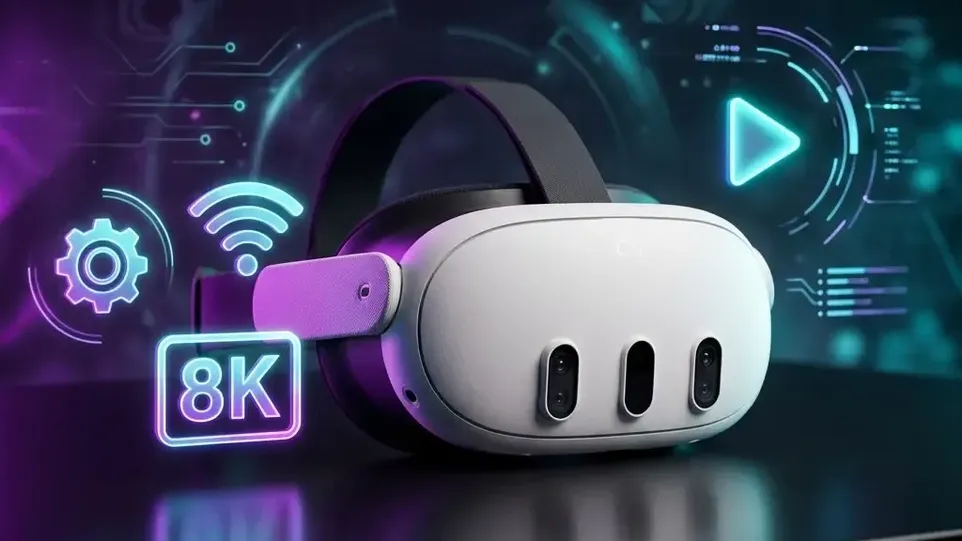
You just got a Quest 3. Now what? This guide covers everything you need to know to get the sharpest, smoothest, most immersive VR porn experience possible — from the right video player to the perfect settings to accessories that actually matter.
Step 1: Choose the Right VR Player (This Is the Most Important Decision)
The built-in Quest browser is terrible for VR porn. It can't handle proper 3D formats, lacks sharpening filters, and causes audio sync issues. You need a dedicated player.
| Player | Best For | Price | Key Strength |
| DeoVR | Streaming + Beginners | Free | Built-in content library, AV1 support, easiest setup |
| HereSphere | Enthusiasts + Local Files | Paid | Best image quality, auto-IPD, granular controls |
| Skybox VR | All-rounder | Paid | Pro-HD mode, PC streaming, best format support |
🎯 Our recommendation: Start with DeoVR (free, instant access). If you get serious, upgrade to HereSphere for the best visual quality.
Step 2: Optimize Your Video Settings
These settings will make the difference between "meh" and "holy s**t":
| Setting | Optimal Value | Why |
| Resolution | 6K–8K | Below 5K looks blurry on Quest 3's 2064×2208 panels |
| Codec | H.265 (HEVC) or AV1 | 30% better quality vs H.264 at same bitrate |
| Bitrate | 100+ Mbps | Below 60 Mbps = visible compression artifacts |
| Frame Rate | 60 FPS | Most VR content is mastered at 60fps |
| Sharpening | Medium (50–70%) | Too high = unnatural halos; too low = soft image |
| Environment | Void (black) | Maximizes contrast and immersion |
Step 3: Streaming vs. Local Files — Which Is Better?
🌐 Streaming (Easy but compromised)
- Open DeoVR or your player's built-in browser
- Navigate to a VR site
- Click play — done
- Downside: Dynamic resolution drops, buffering, lower bitrate
💾 Local Files (Best quality)
- Download 8K files to your Quest 3 or a NAS/PC
- Use USB-C cable or Wi-Fi 6/6E to transfer
- Play in HereSphere or Skybox
- Upside: Full bitrate, no buffering, maximum sharpness
📡 Local Network Streaming (Best of both worlds)
- Store files on a PC or NAS
- Stream via SMB or DLNA on a 5GHz/6GHz Wi-Fi network
- PC should be wired via Ethernet to your router
- Result: Near-local quality without filling up Quest storage
Step 4: Enable Passthrough for Mixed Reality Content
This is the feature that makes Quest 3 unique. Passthrough VR porn puts performers in your actual room.
How to Set Up Passthrough
- Open DeoVR or HereSphere
- Go to Environment/Background settings
- Select "Passthrough" as the environment
- If the video uses green screen, set Mask to "Chroma Key" and select green
- If the video has alpha transparency, select "Alpha Passthrough"
⚠️ Important: The video must be specifically produced for passthrough (green screen or alpha channel). Standard 180° VR videos will show a black background.
👉 Best passthrough studios on xNight:
- AR Porn — World's first all-passthrough studio
- VRedging Passthrough — Edging/JOI in your room
- PassthroughVR by RealVR
💡 Pro tip: Light your room well. Quest 3's passthrough cameras need good lighting for a clean blend.
Step 5: Privacy & Security Setup
Nobody wants their VR habits broadcasted. Here's how to lock it down:
🔒 Browser Privacy
- Open Meta Quest Browser → tap the tabs icon → select "Private Browsing"
- No history, no cookies, no traces saved
👤 Account Privacy
- Go to Settings → Privacy & Safety
- Set profile to "Private"
- Set "Who can see your activity" to "Only me"
- Disable non-essential data collection and ad tracking
🚫 App Hiding
- DeoVR and other players can be hidden from your app library
- Use SideQuest to manage sideloaded apps that don't appear in the main library
Step 6: Comfort Upgrades That Actually Matter
The stock Quest 3 strap is painful for sessions over 20 minutes. These upgrades are worth every penny:
| Upgrade | Recommendation | Why |
| Head Strap | BOBOVR S3 Pro | Battery counterweight + comfort halo = 3+ hour sessions |
| Facial Interface | AMVR or Globular Cluster | Better foam, easier to clean, reduces cheek pressure |
| Audio | Wired IEMs/earbuds | Zero latency vs. Bluetooth lag; better privacy |
| Lens Cover | Silicone face cover | Hygiene, easy wipe-down, sweat-proof |
💡 Free comfort hack: Wear a baseball cap backward under the strap. The brim distributes forehead pressure.
Step 7: Calibrate Your IPD (Most People Skip This)
If VR porn looks blurry or gives you a headache, your IPD (Inter-Pupillary Distance) is probably wrong.
- Find the lens spacing wheel on the bottom of your Quest 3
- Adjust while looking at text in VR until it's sharpest
- Use the eye-relief buttons inside the facial interface to adjust lens depth
- If you know your exact IPD (from an optometrist), set it precisely in Settings → Display
⚠️ Even a 2mm IPD error can make 8K content look like 4K. This is the most underrated setting on the entire headset.
Step 8: Find the Best Content
Your setup is perfect. Now find the right content:
| What You Want | Where to Go |
| 460+ studios, all genres | xNight.net |
| Best cosplay VR | VRCosplayX / VR Conk |
| Best passthrough / AR | AR Porn |
| Best solo / tease | StasyQVR (1.37M views) |
| Best hardcore | LethalHardcoreVR |
| Best threesome | RealJamVR |
| Best romantic / GFE | LustReality |
✅ Quick-Start Checklist
| # | Step | Time |
| 1 | Install DeoVR (free) from Quest Store | 2 min |
| 2 | Calibrate IPD with lens wheel | 1 min |
| 3 | Set privacy to "Only me" in Settings | 1 min |
| 4 | Enable Private Browsing mode | 30 sec |
| 5 | Connect headphones (wired recommended) | 30 sec |
| 6 | Open xNight.net in DeoVR and enjoy | ∞ |
📚 Related Reading

blog.author.bio